Git Version Control

Git Foundations

A practical model of commits, branch pointers, staging, merges, rebases, pull requests, and conflicts without the hand-waving.
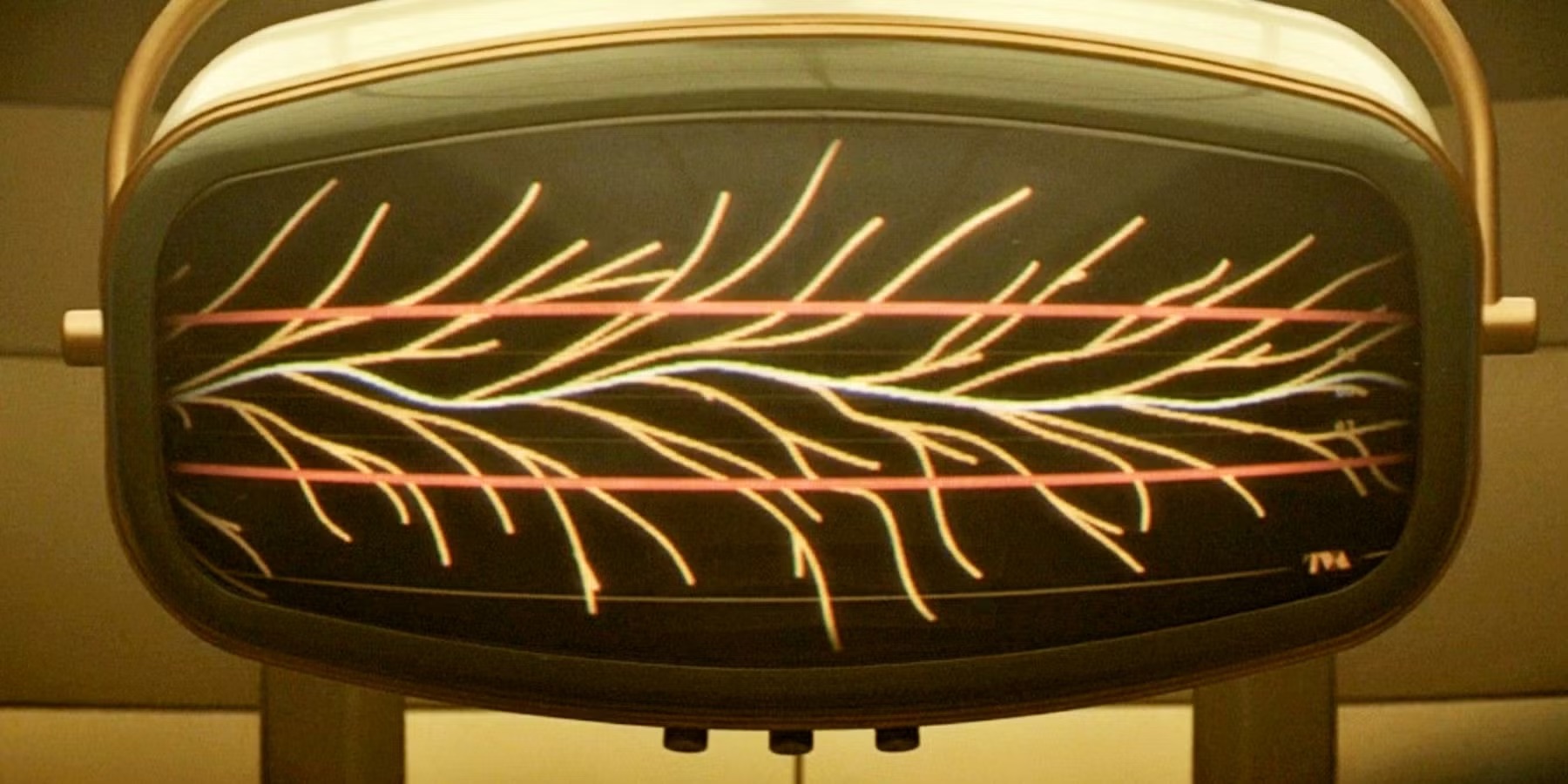
Retro display showing a branching timeline

What this deck does

Start with the actual data model, then follow one change from your working tree to a reviewed merge.

flowchart LR
    WD["Working Directory"] -->|git add| SA["Staging Area"]
    SA -->|git commit| REPO["Repository (.git/)"]
    WD --- M["Modified"]
    SA --- S["Staged"]
    REPO --- C["Committed"]

The core model

Distributed version control

Every developer has the whole history

  • Git is distributed. Each clone contains the full project history, not just the latest files.
  • You can work offline because most operations happen against your local repository.
  • There is no single point of failure because the history exists in many full copies.

Three zones

Your files live in the working directory, selected changes move into the staging area, and commits land in the repository.

The atomic unit

A commit is a full project snapshot plus metadata

commit a1b2c3d4e5f6...
Author: you <you@email.com>
Date:   Mon Mar 24 2026

    Add login page

parent: f9e8d7c6...
tree:   3a4b5c6d...

Every commit gets a SHA hash. Change anything about that commit and the hash changes too. That is how Git keeps the history tamper-evident.

HEAD

`HEAD` is a pointer to the commit you are currently standing on, usually the tip of your current branch.

Daily workflow

Snapshot the work

git status
git add index.html
git add .
git commit -m "Add login page"
git log --oneline

Good habit

Commit often. A commit does not have to be "done" in the product sense — it just needs to be a clean checkpoint.

Atomic, readable history

Going back in time

Undoing is part of the model

git reset --soft HEAD~1
git reset --hard HEAD~1
git revert a1b2c3d
  • `reset --soft` moves history back but keeps changes staged.
  • `reset --hard` throws away changes. Use it carefully.
  • `revert` makes a new commit that undoes an older one, which is usually the safer shared-history choice.

Ignoring files

Teach Git what not to care about

Use a root .gitignore early so build artifacts, logs, temp files, and generated output do not show up as untracked noise or get committed by accident.

# object and archive files
*.[oa]

# editor backup files
*~

# ignore all build directories
build/

# ignore generated PDFs under doc/
doc/**/*.pdf

# keep one specific archive even though *.a is ignored
!lib.a

Pattern rules

  • Blank lines and lines starting with # are ignored.
  • Standard glob patterns apply recursively across the working tree.
  • Start with / to anchor to the current directory, end with / to target a directory.
  • Use ! to negate a match and keep a file tracked.

Useful mental model

* matches many characters, ? matches one, [0-9] matches a range, and ** can match nested directories like doc/**/*.pdf.

If you need a starting point for a language or framework, GitHub’s github/gitignore repository has maintained examples.

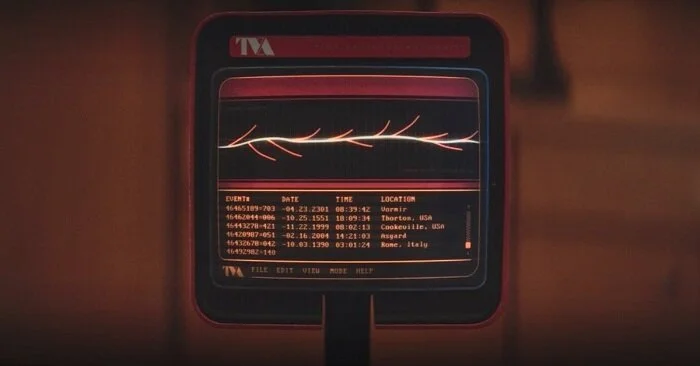
Retro monitor showing a branching line graph
flowchart LR
    A["main: A"] --> B["B"]
    B --> C["C"]
    C --> G["G merge"]
    C --> D["D"]
    D --> E["E"]
    E --> F["F"]
    F --> G

Branching creates parallel universes

What a branch really is

A branch is a named pointer, not a copy

  • Creating a branch is almost free because Git is only creating a tiny pointer to a commit.
  • The `add-login` branch can move forward independently while `main` stays where it was.
  • The merge commit reconnects the two histories once the work is ready.

Core commands

git branch
git switch -c add-login
git switch main
git merge add-login
git branch -d add-login

Merge

Preserve the branch structure

A ── B ── C ── G
          \   /
           D─E─F

Merge preserves the branching history. If both sides moved, Git may create a merge commit that shows exactly where they came back together.

Rebase

Replay your commits on top of the target

git switch add-login
git rebase main

# Before: C -> D -> E -> F
# After:  C -> D' -> E' -> F'

Rebase rewrites history to make it linear. Never rebase a branch other people are already using.

Pull requests

Reviewed merges, not direct pushes to main

On a team, the branch becomes public first. Then review, discussion, and CI checks happen before the merge.

Branch → commit → push → review → merge

Typical team flow

1

Branch

`git switch -c feat/user-auth`

2

Commit

Record work in small snapshots.

3

Push

`git push -u origin feat/user-auth`

4

Open PR

Create the PR in GitHub or GitLab.

5

Review + CI

Comments and checks happen on the branch.

6

Merge + cleanup

Merge, then delete the branch.

Why this beats pushing straight to main

  • Code review catches bugs and improves shared understanding.
  • CI blocks broken code before it lands.
  • Small, focused PRs get reviewed faster than giant ones.

Conflict markers

When Git needs a human

function getColor() {
<<<<<<< HEAD
  return "red";
=======
  return "blue";
>>>>>>> alex/feature-colors
}
  • `<<<<<<< HEAD` is your version.
  • `=======` is the divider.
  • `>>>>>>> other-branch` is the incoming version.

Finish the resolution

git status
# edit the file and remove markers
git add utils.js
git commit -m "Resolve merge conflict in getColor()"

Git can auto-merge most changes. A conflict only happens when both branches changed the same lines differently.

Avoiding conflicts

Sync with main often

git fetch origin
git rebase origin/main

# or:
git merge origin/main

The longer your branch lives without syncing, the more it diverges and the uglier the conflict gets.

Branch discipline

  • Short-lived branches create fewer conflicts.
  • Keep feature branches fully functional and standalone.
  • Integrate earlier instead of waiting for one massive merge day.

Mental model summary

Git is a graph of commits with named pointers

Once that clicks, the commands stop feeling random.

What each concept really is

Concept What it actually is
Repository A folder plus .git/ storing the full history
Commit A snapshot with a SHA, author, message, and parent pointer
Branch A lightweight pointer to a commit
HEAD A pointer to your current place in history
Merge Combining two branch histories
Rebase Replaying commits on top of another branch
Pull Request A structured request to review and merge a branch
Merge Conflict Two branches changed the same lines differently
References and next steps

Keep the model. Reach for the references when you need the exact syntax.

The mental model should stay in your head. The commands can live in the docs.

Interactive deep dive

Git Explainer

Walk through repositories, staging, commits, branches, pull requests, and conflicts one concept at a time.

Open /git-explainer

Command reference

Git Cheat Sheet

Use the cheat sheet when you understand the operation but need the exact command shape fast.

git-scm.com/cheat-sheet

Source background for this deck: Pro Git chapters 1–3.